Use a custom domain when you want shared Oviond reports or dashboards to open from a domain or subdomain your agency controls.
This helps keep agency reporting simple, dependable, and client-ready: your clients open report links on your domain while Oviond handles the reporting workspace behind the scenes.
Agency owners, account managers, or operations users who want client-facing shared report links to use their agency domain.
Use a domain or subdomain you control, for example `reports.youragency.com`.
Make sure you can edit DNS records for that domain.
Custom domains are for shared report and dashboard links. They are different from Email settings, which control branded email sending.
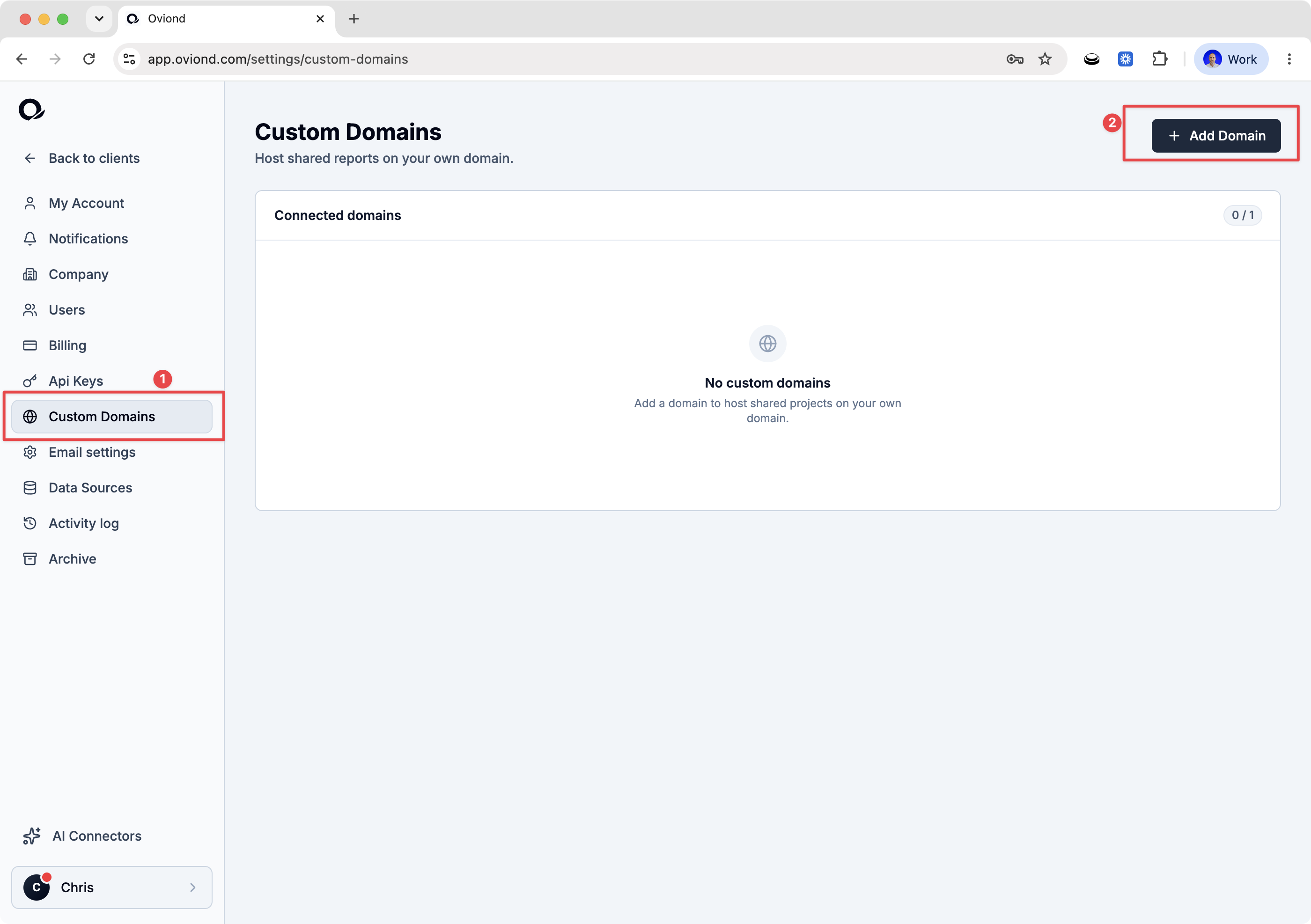
Go to Settings → Custom Domains, then click Add Domain.
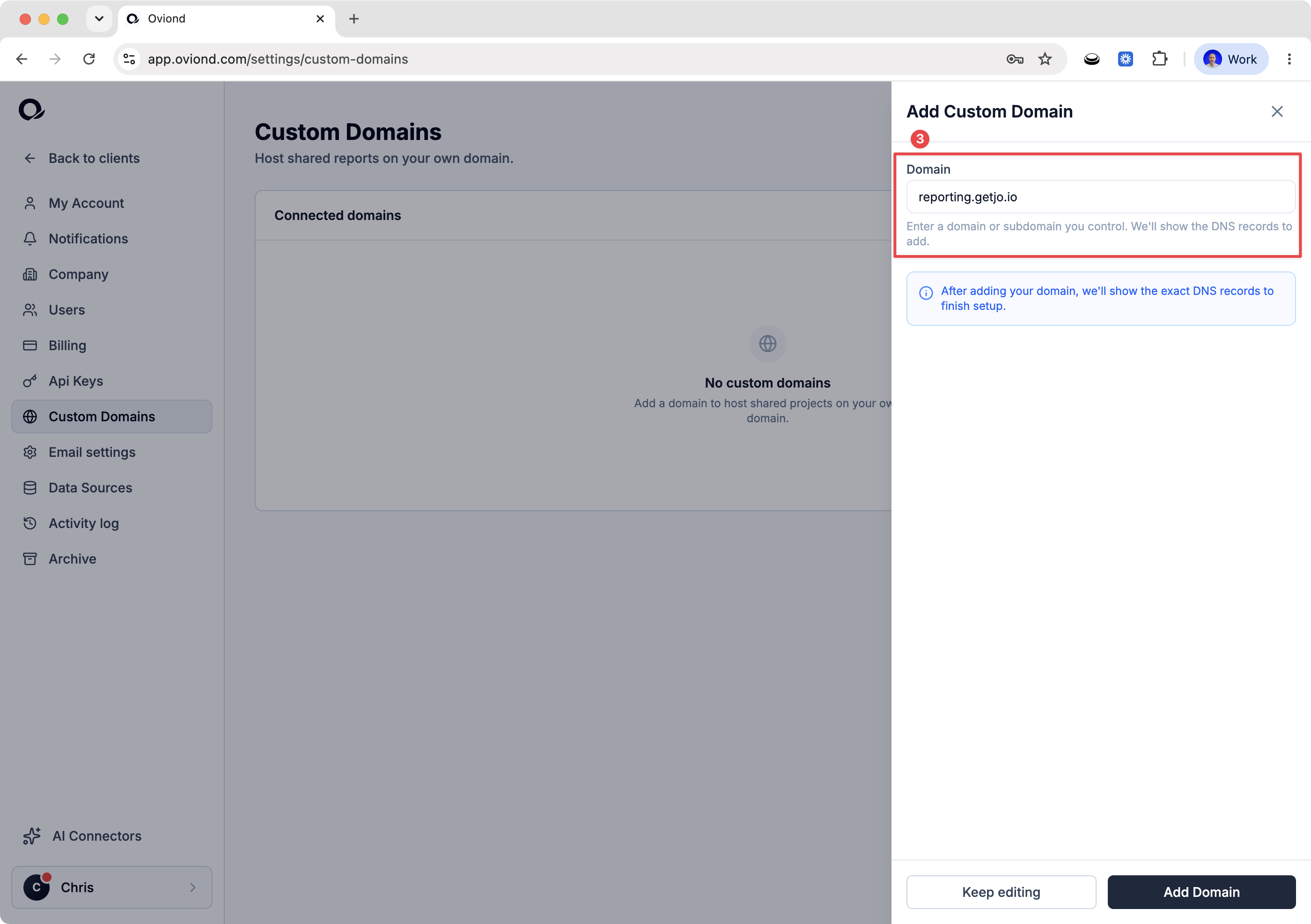
Add the domain or subdomain you want to use, for example `reporting.youragency.com`.
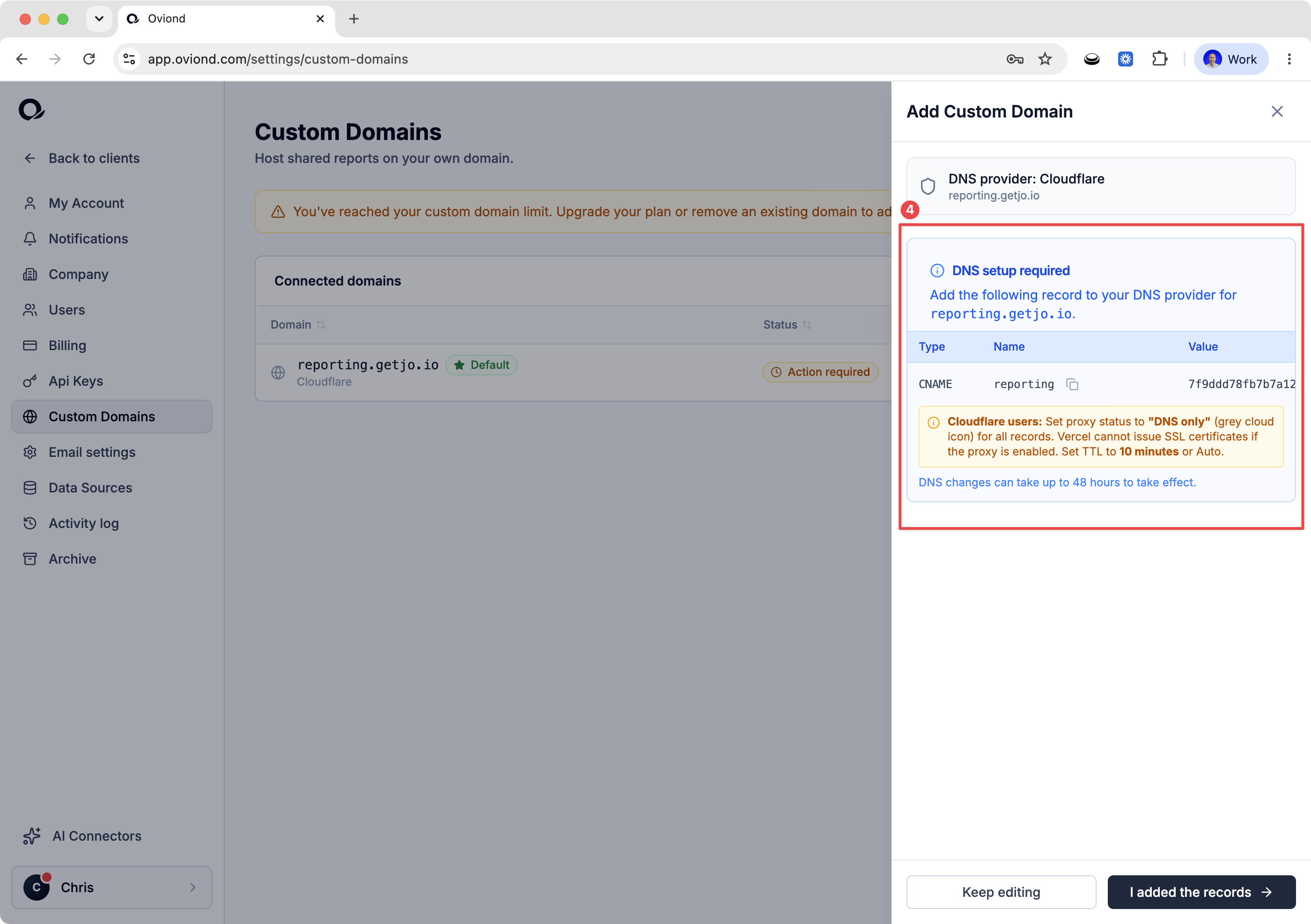
Copy the DNS records Oviond provides, then add them to your DNS provider. Click “I added the records” bottom left.
Wait for the green "Active" status. New domains can take up to 48 hours to propagate. If verification is pending, wait a few hours then hover over the domain and click the refresh icon to check the status.
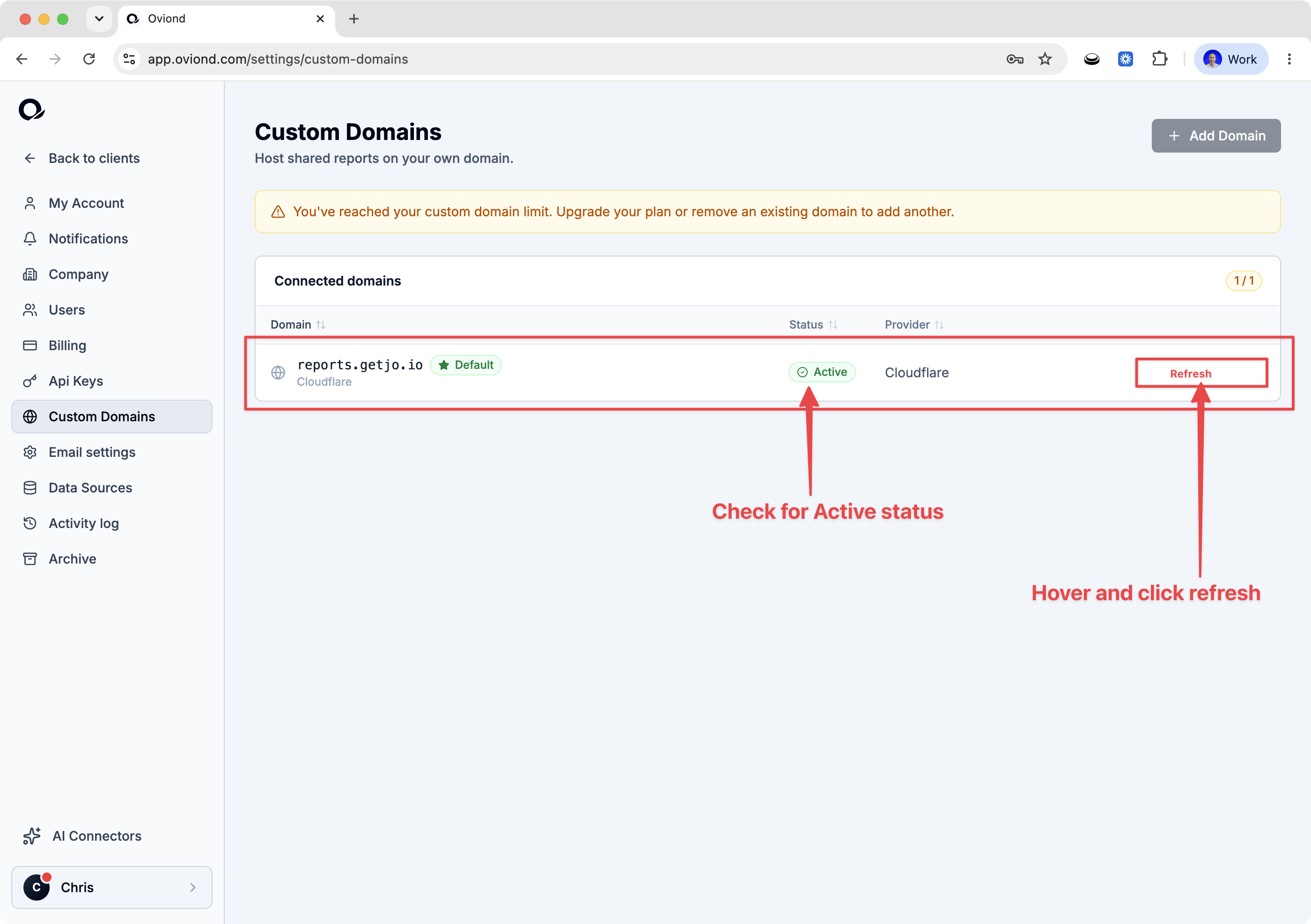
Once the records are added and verified, the custom domain should show as active. Shared report and dashboard links can then use that domain.
Possible statuses are:
Pending — Oviond is waiting for DNS records to be added or detected.
Verifying — DNS records have been found and verification is in progress.
Active — the domain is ready to use.
Failed — the domain could not be verified. Check the DNS records or contact support.
Check that the DNS records from Oviond were copied exactly into your DNS provider. DNS changes can also take time to update.
Check that the domain or subdomain is typed correctly and that the DNS records match what Oviond shows. If it still fails, contact support with the details below.
Send support the exact shared link and the custom domain you expected it to use. We can check whether the link is still pointing to an old route or needs a routing update.
your custom domain or subdomain,
the shared report or dashboard link that is failing,
a screenshot of the error,
your DNS provider,
whether you recently changed DNS records.
These steps follow the current Oviond Settings → Custom Domains workflow and the live screenshots in this article.
